
NinjaProxy has partnered with one of the leading anti-detect browsers, MoreLogin, to help you get the most out of your proxies.
NinjaProxy has partnered with one of the leading anti-detect browsers, MoreLogin, to help you get the most out of your proxies. We've detailed several ways anti-detect browsers can help you be anonymous online.
Whether you're managing multiple social media and e-commerce accounts or just want more privacy, anti-detect browsers paired with NinjaProxy's highly anonymous proxies are a powerful combination.
MoreLogin lets you securely manage multiple accounts by creating a unique fingerprint for each browser profile. As an anti-detect browser, it lets you spoof certain information that websites can request from your web browser as soon as you connect.
The information extends beyond just the IP address and the type of web browser, including device-specific details. For example, web browsers can even expose the GPU model and vendor, the screen resolution, the operating system, and more of the device.
The information is unique enough to identify you across the web. It's not a hundred percent accurate, but it narrows down and allows advertisers to group people into categories based on their browsing history.
Moreover, it becomes challenging to manage multiple online accounts as an agency. MoreLogin lets you spoof device information and create a virtual browser profile, so each online account can have its own browser environment. Moreover, pairing with NinjaProxy enhances that functionality by using a different IP address for each browser profile.
Download and install MoreLogin on your Windows PC or Mac.
Go through the installation process, then sign up to log in with the credentials.
The home screen is where you'll navigate to different menus to explore MoreLogin's functionality. On the left menu, click on Proxies.
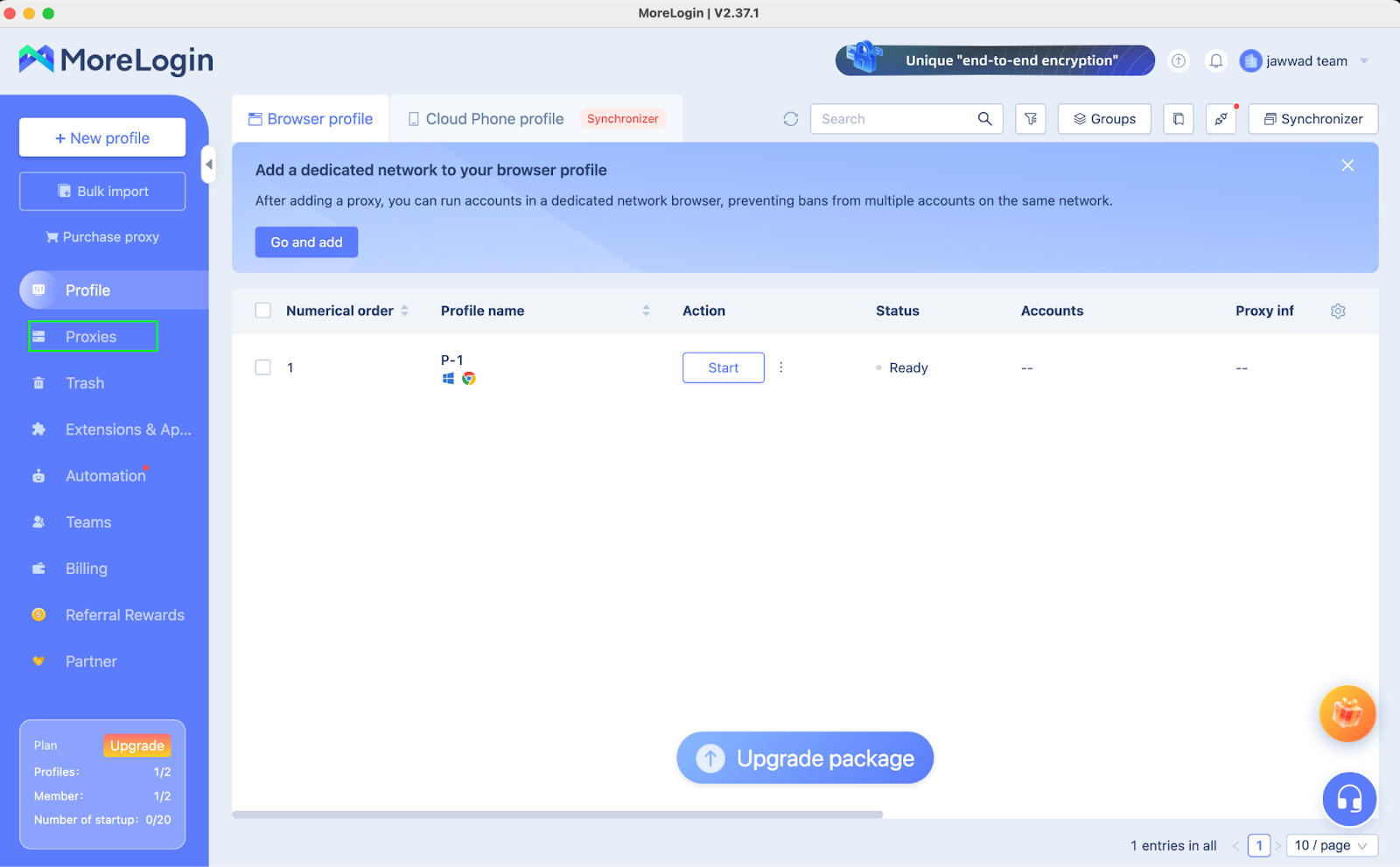
Then, click on Add Proxy. You can choose Add Individual if you intend to use a single proxy server, or Batch Add if you have multiple proxy servers.
As a NinjaProxy customer, you can access your portal to retrieve proxy server details. Go ahead and log in here. Now, copy the proxy server's IP address, port number, and the username and password.

Return to MoreLogin. Choose either HTTP, HTTPS, or SOCKS5, and fill in the required fields.
Note: Only Shared, Private, and Premium Proxies support SOCKS5.
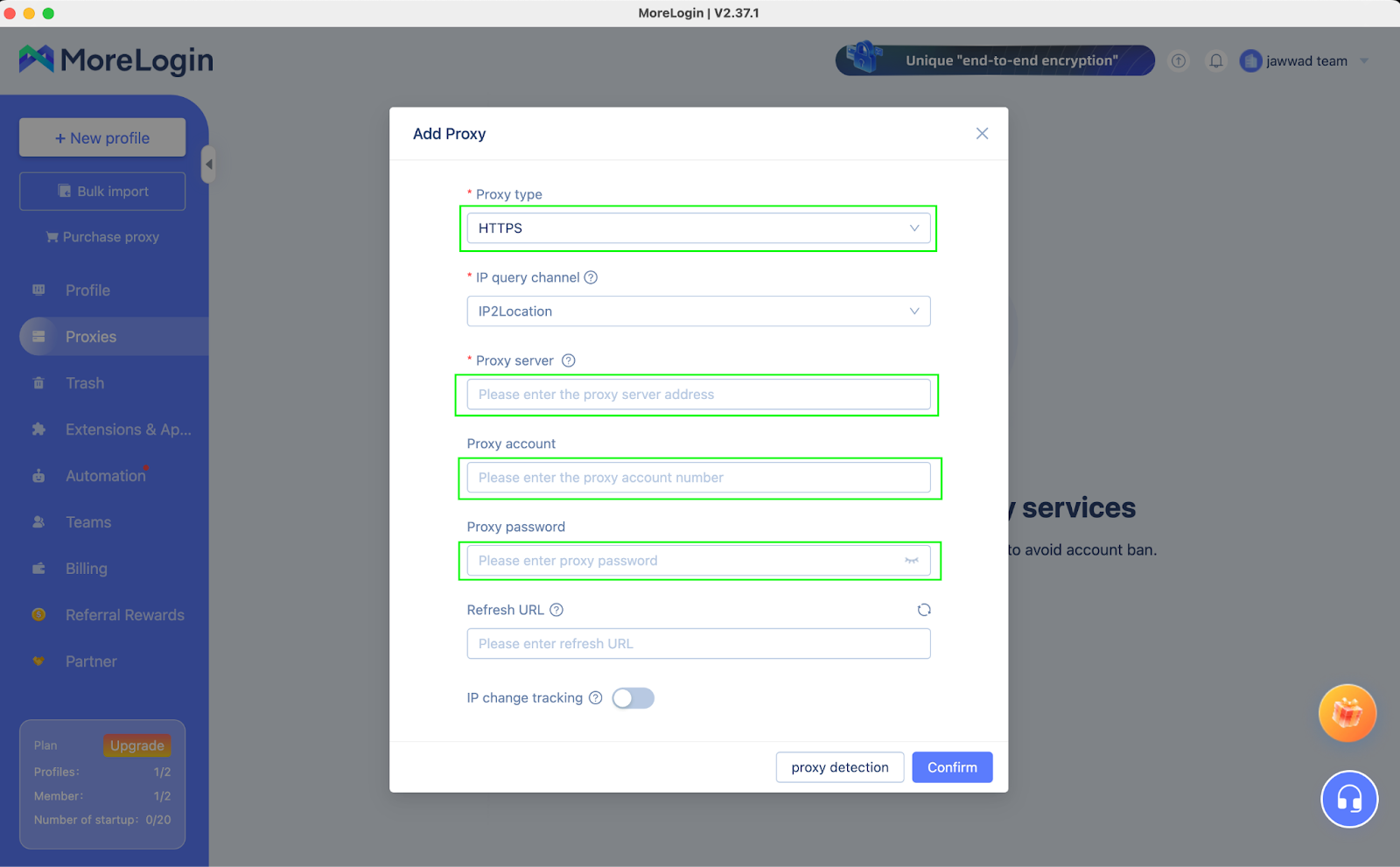
Finally, verify the proxy server connection by clicking on the Proxy Detection button.
Once verified, click on Confirm to save the proxy.
Similarly, you add proxies in batches. When you log into the NinjaProxy dashboard, choose Download list with credentials. The text file will include proxies in a particular format. Just copy everything and paste it into the box when you select Batch Add.
The saved proxies can be recalled when configuring a browser profile inside MoreLogin.
Pair your favorite anti-detect browser with proxies that have a solid IP reputation that keep you anonymous at all times.

