
Dolphin Anty delivers solid browser automation functionality for marketers. Pair it with NinjaProxy for powerful anonymous multi-account management.
You may have come across Dolphin Anty as a recurring name when looking up the best anti-detect browsers. There's a good reason for that popularity; Dolphin Anty delivers solid browser automation functionality for marketers. It makes use of sophisticated technologies under the hood to spoof your identity to keep you anonymous. And the good news is that it pairs perfectly with NinjaProxy.
Our guide today offers an overview of Dolphin Anty's features and how NinjaProxy enhances its functionality with its anonymous web proxies.
Dolphin Anty is a powerful tool that spoofs your browser fingerprint to give you anonymity on the web. If you thought an IP address was everything to keep you anonymous, you thought wrong. Modern web browsers can expose a lot of information that helps identify you on the Internet.
The user-agent string is the first thing that gives out information about your device when you connect to a website.
Moving forward, things like your device's GPU vendor, display resolution, language, time zone, operating system, and CPU type combine to form a more accurate profile of you. It's used by websites to limit bot-like behaviour to limit spam. E-commerce platforms may use such information to determine if a single person has multiple merchant accounts.
Through spoofing, Dolphin Anty creates virtual browser profiles for accessing websites by hiding the fact that the traffic is coming from a single device. You can use NinjaProxy to give the browser profiles a unique IP address to enhance their anonymity.
Dolphin Anty is available for Windows and Mac. So, go ahead and download it from here.
Follow through with the installation process. Once installed, log in with your credentials or sign up as a new user.
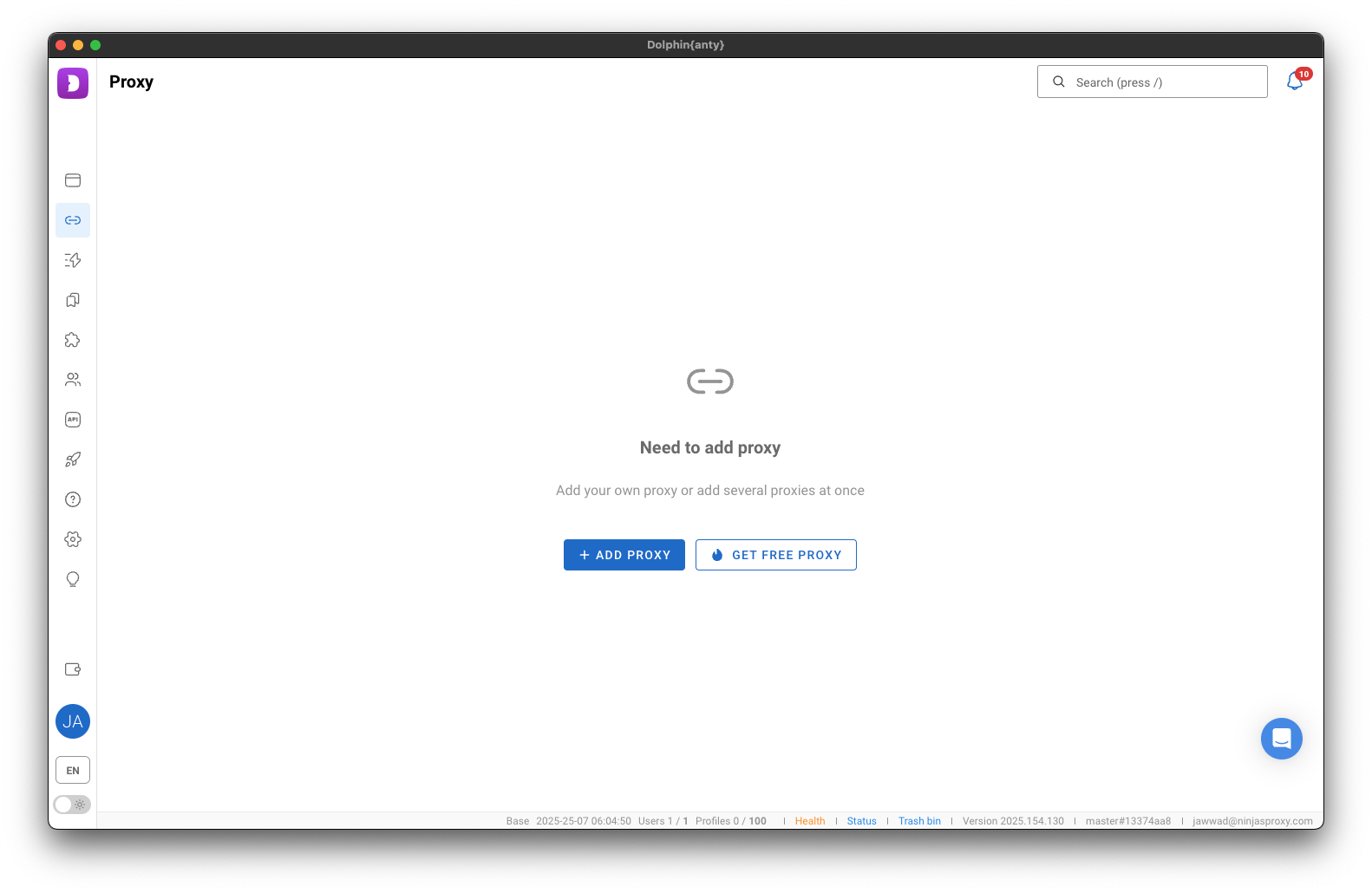
On the left menu, go to Proxies. Now select Add Proxy.

Before we move forward, you need the proxy server information. Log in to your NinjaProxy portal. Copy the proxy server's IP address, port number, and the username and password for authentication.

Return to the Dolphin Anty client, and enter the proxy server details in the correct fields. Select HTTP or SOCKS as the connection protocol.
Note: Only Shared, Premium, and Private proxies support SOCKS.
Click on Add Proxy.
You can also skip manually adding the proxies and add them in bulk. In the NinjaProxy portal, click on Download list with credentials. Copy all the entries in the text file and paste them inside the text box by switching to the Mass Addition tab in Step 5.
Once the proxies have been added, you can create browser profiles as you see fit and assign a proxy server to them. It's recommended to use a different proxy for each browser profile for maximum anonymity.
With proxies so affordable, giving each browser profile a unique IP address becomes so much easier. Oh, and every proxy plan offers unlimited data:
We also have an excellent video tutorial for setting up Dolphin Anty. Check it out on our YouTube channel here.
Need help? We're available to assist. Reach out via our Contact Us page.
.png)
